

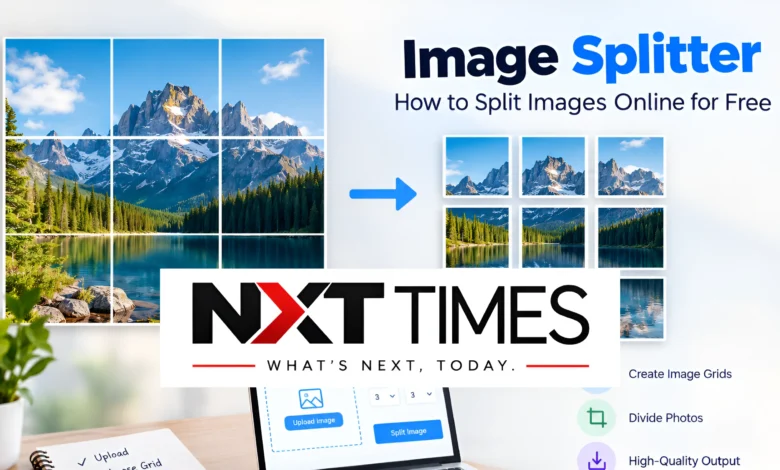
An image splitter is a useful tool for dividing one picture into multiple smaller images. Whether you want to create an Instagram grid, prepare images for a website, organize a large graphic, or split a photo into equal sections, an image splitter can make the process simple and convenient.
Instead of manually cropping a picture several times, you can use an online image splitting tool to divide it into rows, columns, or a custom grid. Many tools also let you preview the result and download the individual image sections.
In this guide, you will learn what an image splitter is, how it works, which features to look for, and how to choose the right tool for your needs.
What Is an Image Splitter?
An image splitter is an online tool or software application that divides a single image into multiple smaller sections. Each section can be saved as a separate image file.
For example, you can take one large photograph and divide it into four equal squares. You can also split a banner into several vertical sections or divide a large design into a grid of smaller images.
Image splitters are useful for personal projects, social media content, website graphics, digital art, and other visual tasks.
How Does an Image Splitter Work?
Most image splitting tools follow a straightforward process:
- Upload an image from your computer or mobile device.
- Choose the number of rows and columns you need.
- Adjust the grid or cropping area if the tool supports customization.
- Preview the individual sections.
- Download the resulting images.
Some tools process images directly in your browser, while others upload files to an online server. The available features depend on the particular tool.
Why Do People Use an Image Splitter?
An image splitter can help with several everyday design tasks. Its usefulness depends on the image format, the intended platform, and the final result you want to achieve.
Creating Instagram Photo Grids
One popular use is dividing a large image into smaller squares for an Instagram profile grid. When the images are posted in the correct order, they can form one larger visual design across multiple posts.
However, social media layouts and display formats can change. Check the current platform requirements before publishing your split images.
Splitting Images for Websites
Website owners sometimes need to divide large graphics into smaller pieces for layouts, design projects, or content management. An image splitter can help prepare these sections without requiring advanced photo-editing skills.
For most modern websites, though, using one optimized image is often simpler than splitting it into several files. The best approach depends on the website’s design and technical requirements.
Preparing Images for Printing
Large designs, posters, and illustrations may need to be divided into sections before printing. An image splitter can help create separate panels that can be printed individually.
For accurate results, consider the required print dimensions, image resolution, margins, and overlap between sections.
Organizing Digital Artwork
Artists and designers can use image splitting tools to separate a large composition into smaller pieces. This can be helpful when preparing graphics for different layouts or managing individual sections of a design.
Sharing Large Visuals
Sometimes, a large graphic is easier to share or manage as several smaller images. Splitting can make individual sections easier to distribute, although it does not always reduce the total file size.
How to Use an Image Splitter Online
Using an online image splitter usually requires only a few steps. You generally do not need professional editing software for a basic grid.
Step 1: Choose Your Image
Select a clear image in a supported format, such as JPG, JPEG, or PNG. Some tools also support WebP and other formats.
Before uploading, check the image’s dimensions and make sure it has enough resolution for your intended use.
Step 2: Select the Grid Size
Choose how many sections you want. For example, a two-row and two-column grid produces four image sections.
A three-row and three-column grid creates nine sections. If you need a specific layout, select a tool that supports custom rows and columns.
Step 3: Adjust the Image
Some image splitters let you move the grid, change the crop area, or adjust the dimensions of each section.
Review the preview carefully to ensure important subjects, text, and other visual elements are not cut off unexpectedly.
Step 4: Split the Image
Start the splitting process. Depending on the tool, the sections may appear individually or be packaged together in a ZIP file.
Step 5: Download and Check the Results
Download the individual images and open them to confirm that the quality and dimensions are correct.
If you plan to publish the sections as a connected grid, arrange them in the proper order before posting.
Features to Look for in the Best Image Splitter
Not every image splitter offers the same capabilities. Choosing a tool with the right features can save time and help you get better results.
Custom Rows and Columns
A useful image splitter should let you choose the number of horizontal and vertical sections. This flexibility is important when creating social media grids or dividing a graphic into specific dimensions.
Image Preview
A preview helps you see where the image will be divided before processing begins. It can also help prevent important details from being cut across section boundaries.
High-Quality Output
Look for a tool that preserves the original image dimensions where possible. If the tool re-encodes the image, some quality loss may occur, depending on its settings and file format.
Multiple Download Options
Downloading each section separately is useful for small projects. A ZIP download can be more convenient when an image is divided into many pieces.
Ease of Use
A simple interface makes image splitting accessible to beginners. Clear upload controls, grid settings, previews, and download options can make the entire process easier.
Privacy and Security
Check how an online tool handles uploaded images. If your pictures contain private information or sensitive details, consider using a trusted application that processes files locally on your device.
Online Image Splitter vs. Photo Editing Software
An online image splitter and a traditional photo editor can both divide images, but they serve slightly different purposes.
An online tool is generally more convenient when you need to split an image quickly without installing software. It is often suitable for basic grids, simple crops, and everyday content creation.
Photo editing software provides more control over advanced tasks, including detailed cropping, color correction, layers, image retouching, and precise export settings.
For a simple four-part grid, an online image splitter may be all you need. For a complex design project, a dedicated image editor may be a better choice.
Is an Image Splitter Free to Use?
Many online image splitters offer free basic features. These may include uploading an image, selecting a grid size, splitting the picture, and downloading the results.
However, free access varies between tools. Some services may impose file-size limits, restrict advanced features, add watermarks, or require an account for certain downloads.
Before choosing a tool, review its current limitations and terms. Do not assume that every image splitter is completely free or offers unlimited processing.
Common Image Splitting Problems and How to Fix Them
Even a simple image splitting process can produce unexpected results. Fortunately, most common problems are easy to address.
The Image Looks Blurry
A blurry result may come from a low-resolution original, excessive enlargement, or compression during export.
Start with the highest-quality original image available. Avoid enlarging small sections beyond their original resolution.
The Sections Do Not Match
If the pieces do not align correctly, check the selected grid dimensions and crop settings. Some images have dimensions that do not divide evenly into the requested number of sections.
Choose a tool that handles uneven dimensions properly or adjust the layout before splitting.
Important Text Is Cut Off
Text near a grid boundary may be divided between two images. Move the grid or change the layout so important words and subjects remain within individual sections.
The Downloaded Images Are Missing
Some tools download sections individually, while others package them in a ZIP file. Check your browser’s downloads folder and confirm that the download process has finished.
If a ZIP file is provided, extract it before using the individual images.
For more helpful guides and the latest updates, visit nxttimes.com.
Tips for Getting Better Results with an Image Splitter
Follow these practical tips to improve your results:
- Start with a high-resolution image: This helps maintain clarity in the smaller sections.
- Choose the right grid: Use a layout that fits your publishing or design needs.
- Preview before downloading: Check alignment and make sure important details remain visible.
- Keep the original file: Save a backup in case you need to change the layout later.
- Use consistent dimensions: Matching image sizes can help when arranging sections on a website or social media profile.
- Check file privacy: Avoid uploading sensitive images to unfamiliar services.
- Verify platform requirements: Confirm the current image dimensions and publishing rules of the platform you intend to use.
Conclusion
An image splitter is a practical solution for dividing a picture into smaller sections without manually cropping every piece. It can help with social media grids, website graphics, digital artwork, and printing projects.
To get the best results, choose a tool that offers flexible grid settings, image previews, reliable downloads, and suitable privacy protections. Start with a high-quality image, check the layout before splitting, and make sure the final sections meet your intended requirements.
Frequently Asked Questions
1. What is an image splitter used for?
An image splitter divides one picture into smaller image files. People use it to create social media grids, prepare website graphics, divide artwork, and organize images for printing.
2. Can I use an image splitter online for free?
Yes, many online image splitters offer free basic features. However, file-size limits, watermarks, account requirements, and advanced options vary by service.
3. Can I split an image into equal squares?
Yes. Choose a grid with the same number of rows and columns, such as two rows and two columns or three rows and three columns. The exact dimensions of each square depend on the original image and the tool’s cropping options.
4. Does splitting an image reduce its quality?
Splitting an image does not automatically reduce its quality. However, resizing, compression, or re-encoding during export can affect the results. Using a high-resolution original and suitable export settings helps preserve image quality.
5. Is an online image splitter safe?
Safety depends on the service and how it processes uploaded files. Review the tool’s privacy policy and avoid uploading confidential or sensitive images to unfamiliar websites. A local image editor may be preferable for private files.